- Producer: ROEST Coffee, Norway
- Machines: all sample and production roasters
- Connection: data is retrieved from the ROEST server using the MQTT protocol (requires API access and credentials)
- Features:
- the following data, if available, is retrieved from the machine during roasting
- bean, environmental, drum, inlet, exhaust, and target temperature
- heater (%), fan (%), and drum (RPM)
- air pressure
- cracks / total cracks
- CHARGE/DRY/FCs/DROP events
- on setup: machine elevation and last batch number
- import of ROEST profiles from CSV files
- the following data, if available, is retrieved from the machine during roasting
SETUP
1. Activate ROEST cloud API access
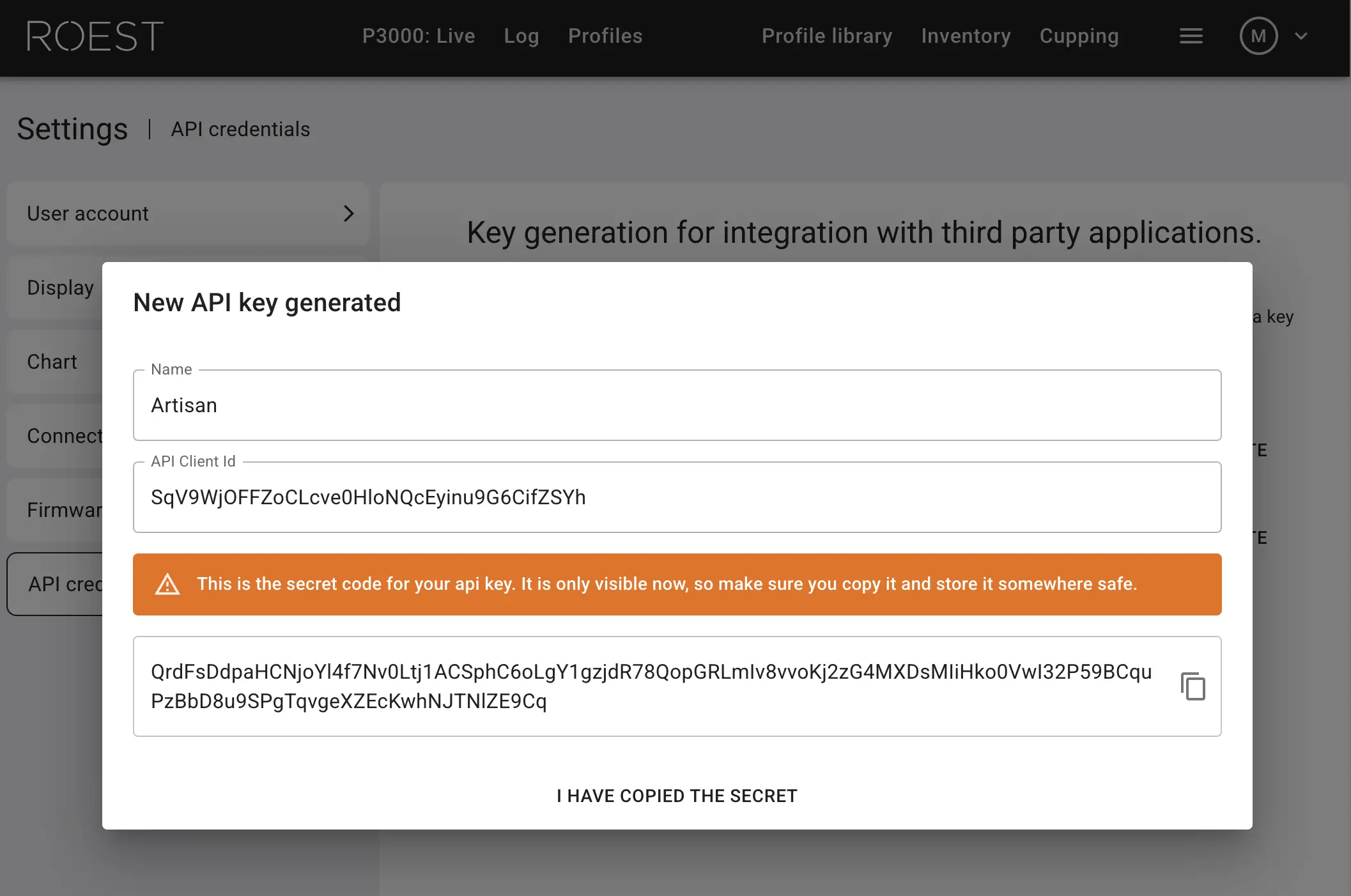
On the ROEST portal, navigate to the Settings » API credentials tab and press CREATE NEW CREDENTIALS. Copy the Client Id and the Secret!
2. Artisan machine setup
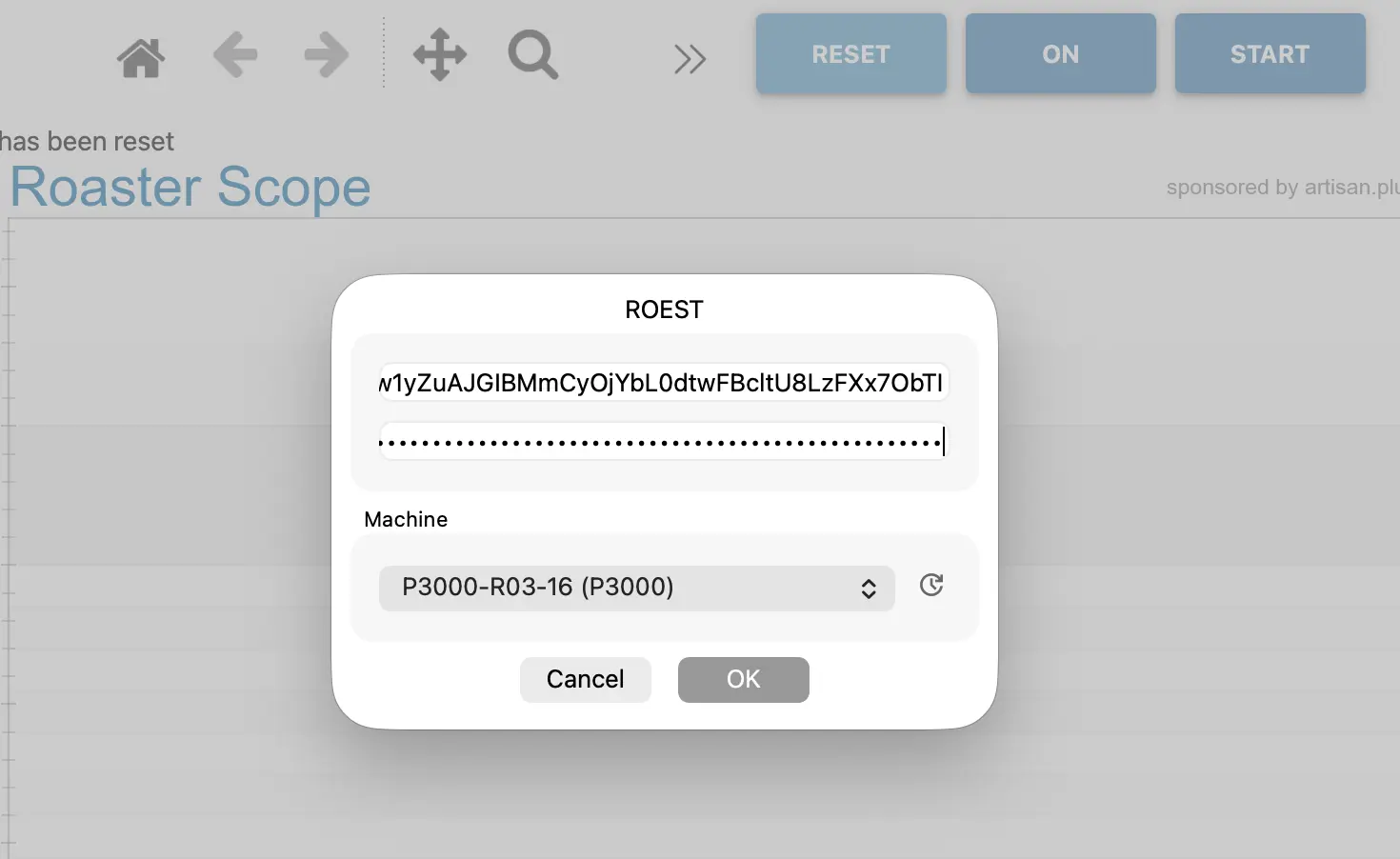
Select your machine model under menu Config >> Machine >> ROEST in Artisan, paste the Client Id and Secret in the corresponding fields, press the update icon next to the machine popup, select your ROEST machine from the popup and leave the dialog with OK.
Watch out! Note that the API credentials are not stored on the Artisan side and used only in this setup process to retrieve access credentials, which are stored securely in the operating system’s keychain.
Watch out! This setup comes with alarm rules pre-defined (see menu Config >> Alarms), which automatically start the recording once a roast is started on the machine, after Artisan got turned ON. At the end of the roast (DROP), Artisan is automatically turned OFF. After the profile is (auto-)saved, Artisan will automatically turn ON again (KeepON is active; see menu Config >> Sampling). That way you can keep Artisan recording your roasts as you operate the machine. Writing Artisan .alog files can be prevented by clearing the autosave path (menu Config >> Autosave).